Robot vacuum cameras and privacy: settings to check
Some robot vacuums use cameras to avoid obstacles. Before you enable one, learn what the images are used for, where they go and which settings and alternatives reduce the exposure.
As an Amazon Associate we earn from qualifying purchases. Product links on this page are affiliate links: buying through them costs you nothing extra and does not change what we recommend.
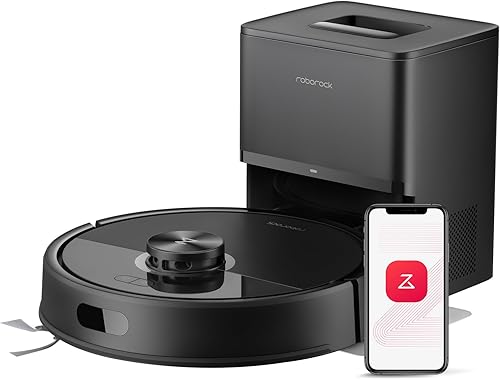
roborock Q7 M5+ robot vacuum and mop
Best for: Small apartments and homes with pets where daily vacuuming matters.
- Self-empty dock suits busy households and pet hair
- Vacuums and mops
- The dock needs floor space and an outlet
- Replacement bags are an ongoing cost
Name, photo and listed features checked on Amazon.com on November 14, 2026. We have not tested it; see how we choose.
Which robot vacuums actually have cameras
Robots find their way with one or more of these: bump and cliff sensors only, a spinning laser distance sensor (lidar), a structured-light sensor that projects a pattern, or a camera. A robot with a forward-facing camera can recognize some objects, such as cables, shoes and pet waste. Some models also have a camera that you can use remotely, turning the robot into a rolling security camera. The first group is a navigation feature. The second is a surveillance feature, and it brings the privacy considerations of an indoor camera. Read the product page carefully for words like “live view,” “remote patrol,” “AI object recognition” and “video call.”
What to ask before enabling a camera
- Is the camera optional? Look for a physical or software switch and whether the robot still works with it off.
- Where does processing happen? On-device object recognition is different from images uploaded to a server. The privacy policy and app settings should say which.
- Are images stored, and for how long? Look for retention periods and a way to delete them.
- Can you turn off remote viewing? The FTC advises thinking carefully before enabling remote viewing, especially for cameras pointed at private areas like bedrooms, and looking for a camera that lets you disable remote viewing.
- Does it have an indicator? A visible light or app notice when the camera is active.
- Is it encrypted? The FTC recommends cameras with built-in encryption for account data, live streams and recordings.
Account and network settings that matter most
Most robot vacuum privacy problems come from the account rather than the robot. The FTC’s advice for connected devices applies directly:
- Use a strong, unique password. Do not reuse one from another account.
- Turn on two-factor authentication if the app supports it.
- Keep the app and the robot’s firmware up to date, and enable automatic updates if offered.
- Disable features you do not use, and disconnect devices you no longer need.
- Secure your router with a unique name and password and a modern encryption setting (WPA3 or WPA2). Putting cameras and other connected devices on a separate network limits the damage if one is compromised. See how to set up a separate network for smart devices.
Be careful with other people in the household too: agree on who has app access, and remove old accounts when someone moves out.
Map data counts as personal data, too
Even a robot with no camera builds a floor plan of your home, including room names, furniture positions and when you are out. Treat that like other location data:
- Check what the app shares with third parties or voice assistants.
- Turn off cloud map backup if you do not need it and the app allows it.
- Name rooms generically if you prefer.
- When you sell or give away the robot, reset it and remove it from your account.
Lidar-only or camera-free: the lower-exposure choice
If you have no need for object recognition, a lidar-based robot without a camera avoids the issue of home images entirely. It is not perfect at spotting cords and socks, so you will tidy up the floor before a run, but it is a reasonable trade-off for a bedroom-heavy home. The comparison page lidar vs camera navigation explains the trade-offs.
Security labels and standards
NIST published a baseline of cybersecurity features for consumer IoT products (NIST IR 8425, September 2022), and a federal labeling program, the U.S. Cyber Trust Mark, was announced in July 2023. If a robot carries such a label, that is a useful signal about security features. Its absence does not mean a product is unsafe, because many products do not carry it. See what the U.S. Cyber Trust Mark means.
A privacy checklist for a new robot
- Set up the account with a unique password and two-factor authentication.
- Decide which features you want before opening the app’s permissions: object avoidance, live view, voice control.
- Turn off live view and remote patrol if you will not use them.
- Check the privacy settings in the app for image sharing and “help improve the product” options.
- Set no-go zones for the bedroom and bathroom if the robot has a camera.
- Put the robot on your guest or IoT Wi-Fi network.
- Review who has access every few months.
For general advice on cameras inside the home, see indoor camera privacy.
Products that match each need
Camera-free robot for bedroom-heavy homes
What to look for: lidar navigation without a camera, local map storage option, account two-factor authentication, no-go zones

Camera for object avoidance only
What to look for: on-device recognition, a physical or software camera switch, a clear privacy policy, a status light

Wi-Fi separation for connected devices
What to look for: guest network or IoT network support, WPA3 or WPA2 encryption, automatic updates
Frequently asked questions
Do all robot vacuums have cameras?
No. Many use lidar, structured light or basic bump sensors. Check the product page for “camera,” “AI recognition” or “live view” to see whether one is included.
Can a robot vacuum camera be turned off?
On many models, yes, either by a switch or in the app, and the robot can still clean using other sensors. If the product page does not say, ask the maker before buying.
Are robot vacuum images stored in the cloud?
It depends on the model. Some process images on the robot, others upload them. The app’s privacy settings and the privacy policy should explain which applies.
How do I protect a robot vacuum account?
Use a unique password, enable two-factor authentication, keep the app and firmware updated and use a separate network for connected devices. These are the FTC’s core steps for any connected device.
Sources
- Federal Trade Commission — Securing your internet-connected devices at home
- Federal Trade Commission — Using IP cameras safely
- NIST — Consumer IoT cybersecurity (NIST IR 8425 and the U.S. Cyber Trust Mark)
- Amazon.com listing: roborock Q7 M5+ Robot Vacuum and Mop, Up to 7-9 Weeks Self-Empty, 10000Pa (ASIN B0DWX69JVG), checked November 14, 2026
- Amazon.com listing: Shark PowerDetect Self-Empty Robot Vacuum, Black, AV2820S (ASIN B0CDJFHM4J), checked November 14, 2026
Product names, photos and listed features were checked on the Amazon.com product pages on November 14, 2026. Prices and availability change; the retailer page is always the reference.
Related pages
 GuideAre smart locks safe? What the real risks areA smart lock is as strong as its bolt, its cylinder, your door frame and your account password. Here are the real risks, from forced entry to stolen…
 KitLocal-only smart home kitRun lights, sensors, plugs and cameras from a controller in your home so they keep working without the internet. The shopping list, what each part…
 ComparisonRobot vacuum vs cordless stick vacuum: what each does wellA robot keeps floors tidy every day while you are out; a cordless stick vacuum does the deep clean, the stairs and the spills. See which one fits…
 GuideDoes your smart home work without internet?Some devices keep running when your internet drops and some stop at once. See what works locally with Matter, Zigbee, Home Assistant and Apple Home…KitRobot vacuum upkeep kitThe small purchases that keep a robot vacuum cleaning: spare filters and brushes, boundary strips, cord control and sensor-cleaning supplies, with…ComparisonLidar vs camera robot vacuums: how each one navigatesLidar maps a room with a laser; camera-based robots map with images. They differ in darkness, obstacle recognition and privacy. See what each means…